> For the complete documentation index, see [llms.txt](https://docs.mindnetwork.xyz/minddocs/llms.txt). Markdown versions of documentation pages are available by appending `.md` to page URLs; this page is available as [Markdown](https://docs.mindnetwork.xyz/minddocs/product/x402z/x402z-testnet-user-guide.md).
# x402z Testnet User Guide
{% hint style="info" %}
Learn more about x402z at [here](https://docs.mindnetwork.xyz/minddocs/product/x402z).
{% endhint %}
***
### User Guide: x402z Confidential Payment Testnet
Welcome to the x402z testnet. This guide details how to configure your AI Agent, manage Confidential Tokens (ConfUSDC), and execute privacy-preserving transactions on the Sepolia network.
#### 1. Connect and Configure
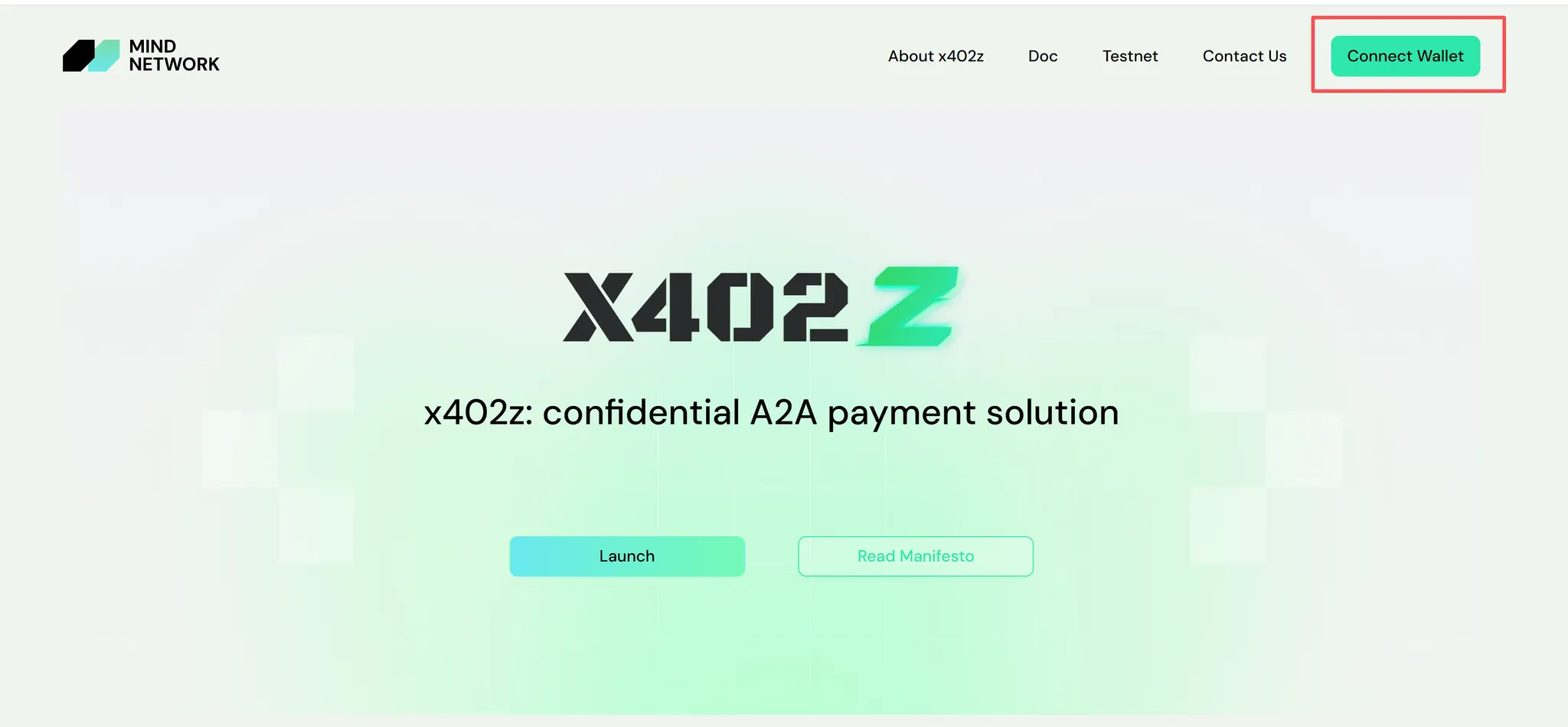
Access the Platform Navigate to the [official x402z dashboard](https://x402z.mindnetwork.xyz/).
**Wallet Setup**
1. Click Connect Wallet in the top right corner.
2. Approve the signature request in your wallet provider (e.g., MetaMask).
3. Ensure your network is switched to Sepolia Testnet.
#### 2. Initialize Your Agent
1. Click the Launch button on the main interface.
2. In the pop-up modal, review the details and select Create Agent.
3. Wait for the on-chain transaction to confirm the creation of your autonomous agent instance.
#### 3. Asset Management: Claim and Encrypt
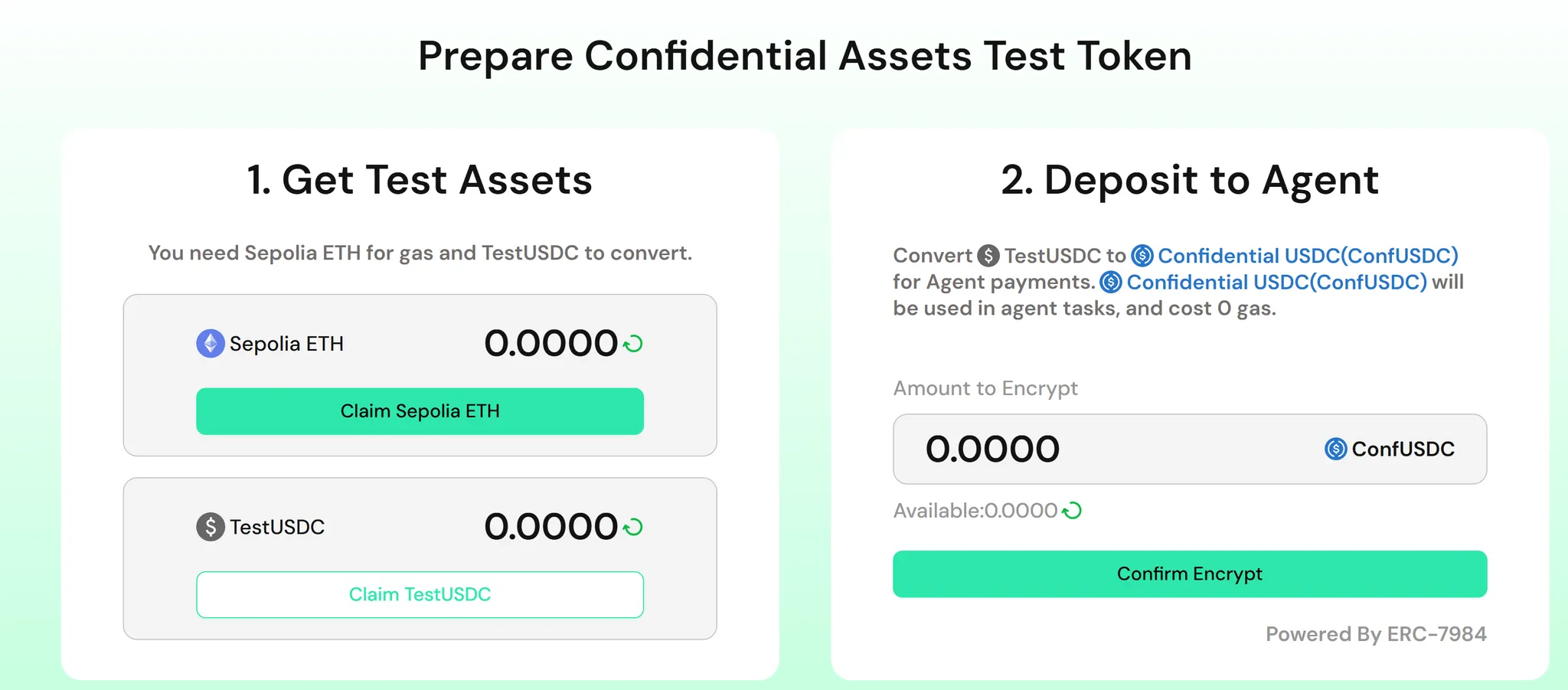
Before your Agent can operate, it requires gas (Sepolia ETH) and payment tokens (TestUSDC).
**Step A: Faucet**
* **Sepolia ETH**: If your wallet lacks Sepolia ETH for gas fees, please obtain some from a standard Sepolia faucet.
* **TestUSDC:** Locate the asset panel and click Claim TestUSDC. This asset will serve as the underlying capital for your Agent's payments.
**Step B: Encrypt Assets (Claim ConfUSDC) To utilize the privacy features of x402z, you must convert public ERC-20 tokens into Confidential Tokens.**
1. Refresh your asset balance to see the claimed TestUSDC.
2. Input the amount of TestUSDC you wish to encrypt (Recommendation: Minimum 10 USDC).
3. Click Encrypt to Wrap ConfUSDC.
> Note: This process utilizes Fully Homomorphic Encryption (FHE) standards to ensure your balance remains private on-chain.
#### 4. Execute Agent Tasks
1. Scroll down to the Agent control panel.
2. Click Start Agent to initiate the automated testing sequence.
> Beta Warning: As this is a testnet environment, you may experience intermittent service or network latency. If the Agent fails to start, please retry after a few moments.
#### 5. History and Decryption
View Transaction History Navigate to Agent History to monitor payment activities.
* **Default View:** Payment amounts are encrypted and hidden from the public ledger to ensure intent privacy.
* **Decrypt View:** Click the Unlock icon next to a transaction to locally decrypt and view the specific payment amount.
Manage Confidential Balance In the Confidential Balance section, you can manage your private assets.
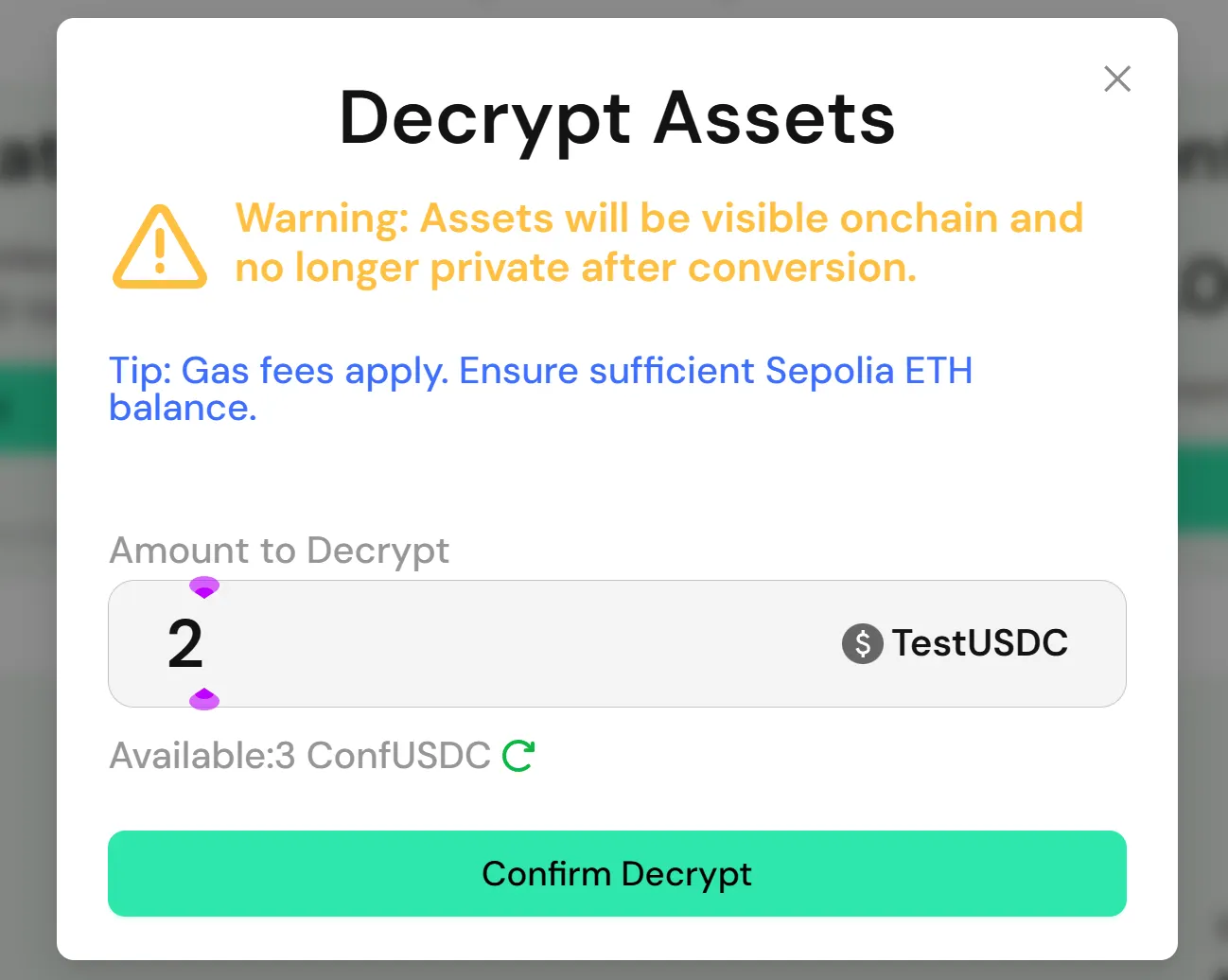
* **Unwrap (Decrypt to Public):** To convert ConfUSDC back to standard TestUSDC, click Unwrap.
* **Privacy Warning:** Unwrapping assets will expose the specific amount on the public blockchain.
* **Confirmation:** Click Confirm Decrypt and sign the transaction. Please ensure you have sufficient Sepolia ETH to cover the gas fees.